Support me
If you enjoyed this program and would like to support my future work, you can do so here:
Patreon
Description
Have you ever faced a situation during a large project where you needed to solve a problem you had already tackled before? In such cases, you usually end up searching through thousands of lines of code, trying to locate the relevant snippet. This app aims to provide a solution to that issue. With its help, you can save your code snippets to a local or cloud-based (Atlas) MongoDB database and perform quick searches to find them when needed.
Preparations Before Installation
If you want to use the app with a locally installed database, you'll need to install MongoDB, which will run as a
service on your system. The default setup is the local MongoDB service. If you want to change to cloud service,
you can setup it on setup page. Before you run the app make sure that MongoDb is installed, and running on your
system, otherwise the app will not start.
You can download the installer and find installation instructions here:
MongoDb Community Server
Download
For cloud-based usage, you need to register with the service provider.
I recommend MongoDB Atlas, which is free up to 512MB of database size.
MongoDb Atlas
Installation
You can install the app either via the installer or by compiling the code yourself after downloading it. In both
cases, you'll need .NET to run the application, which can be downloaded from Microsoft's website:
.NET Download
Once
installed, you can launch the program using the desktop shortcut.
The installer is available for download here:
Snippet
Store Setup Download
Checksum (setup.zip)
Algorithm : SHA256
Hash : 5CCBE65AF3BBD85597549E9ECE08DF8CFD3DB212A131267AB7769690894F2457
Algorithm : SHA1
Hash : 76815E5B93F214CCDDF50074D34135994B0288DC
Algorithm : SHA512
Hash :
13CE16309EA9FDEBC9936742FED9ADD92198909B1F3E3FE3CD396D194DD9112178213632182357A06344D95F6E39279D7A47A4B63C584659D91ED974583E7BD7
Algorithm : MD5
Hash : FD8373382695312DBF93A9CEDF29E711
Main interface
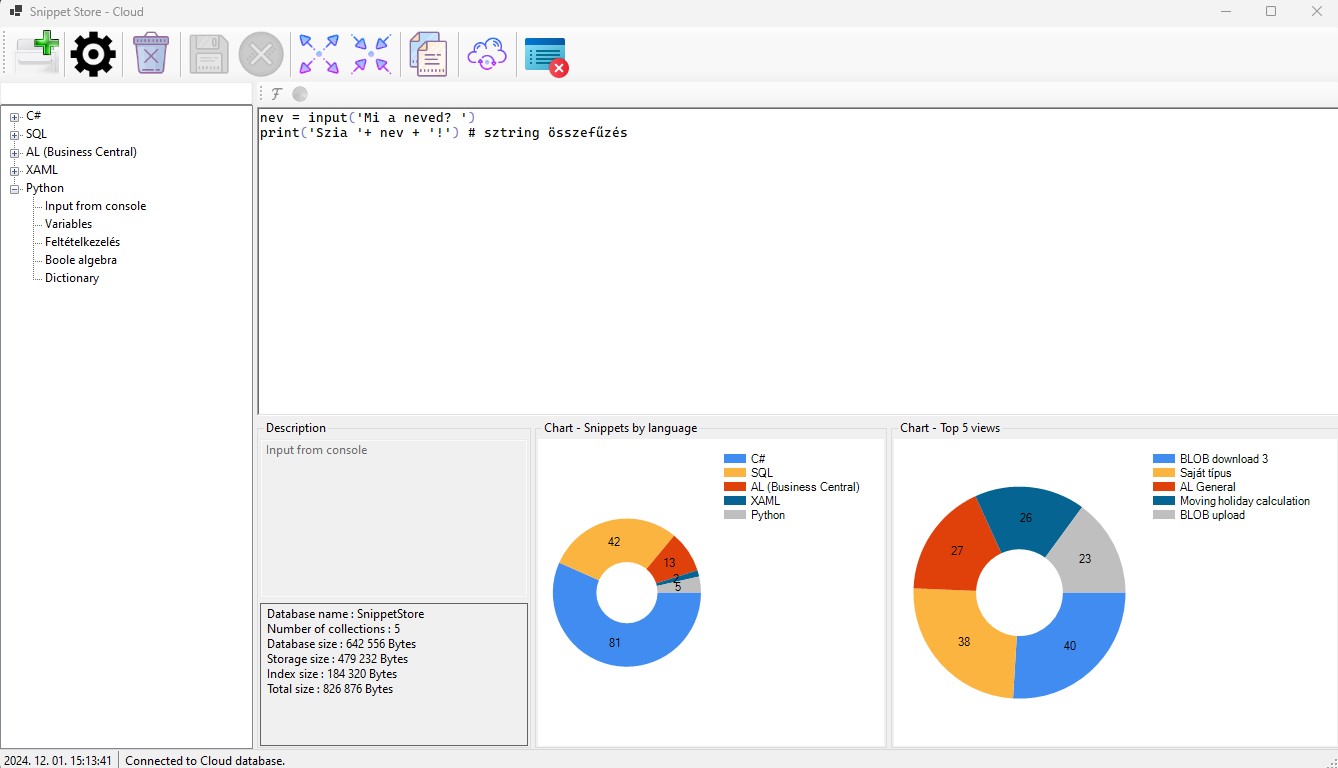
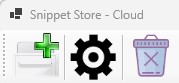
The toolbar buttons provide the following functionalities:
- Add a new snippet
- Settings
- Delete a snippet
- Save snippet modifications
- Discard snippet modifications
- Expand tree view
- Collapse tree view
- Copy snippet
- Copy data from the cloud database to the local database
- Cancel search
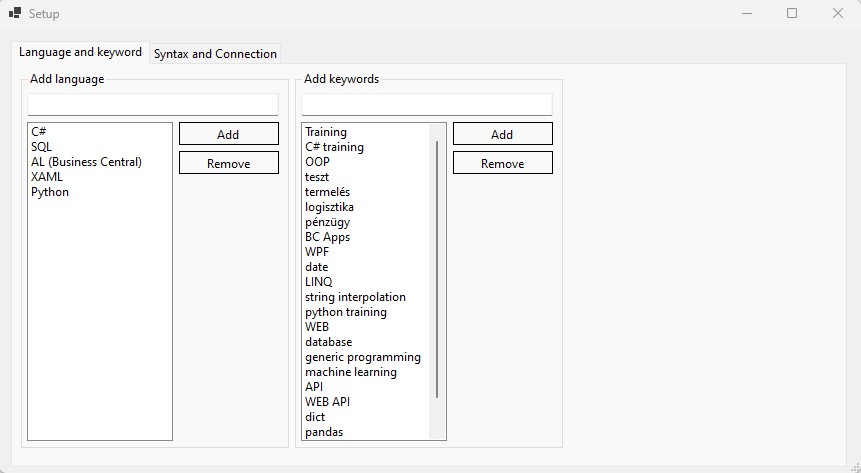
Settings
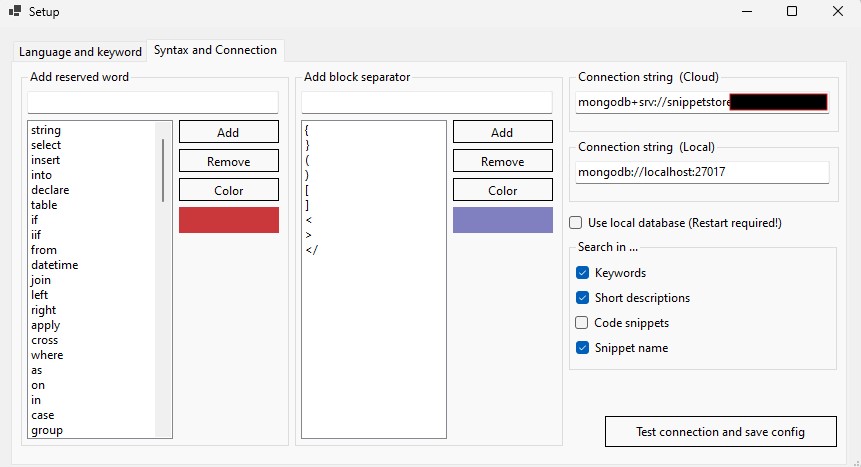
Syntax and connection tab
Adding Snippets
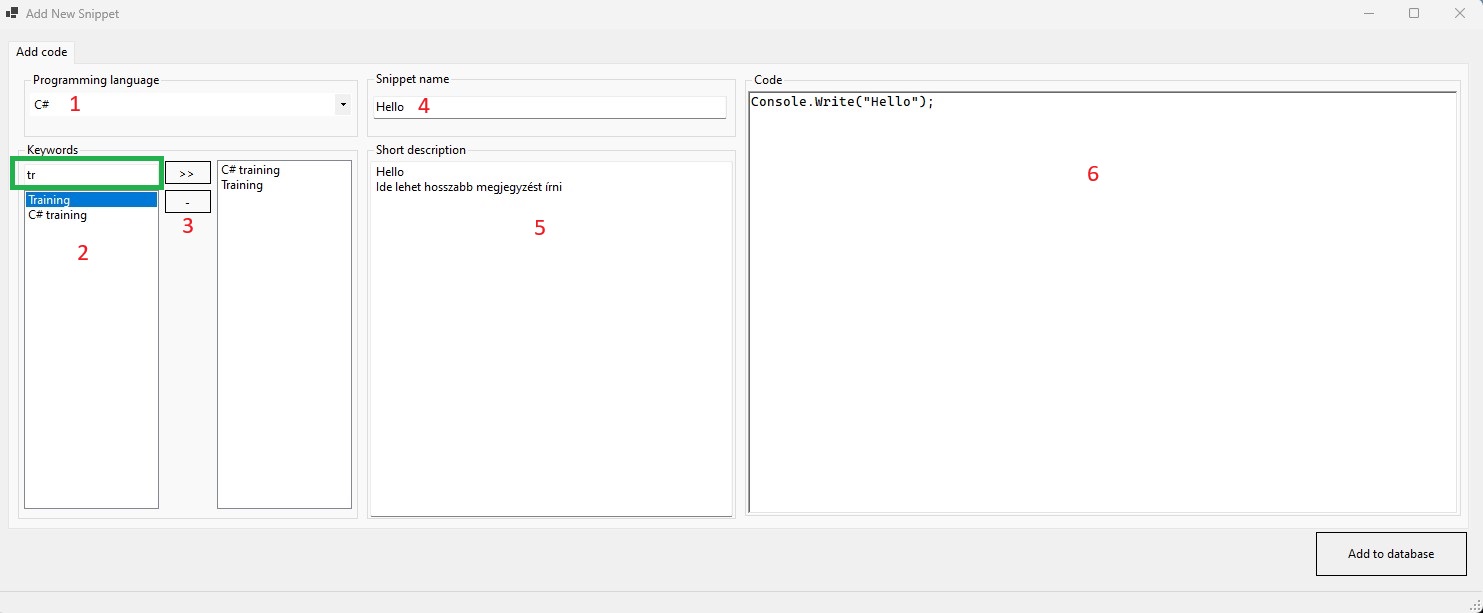
- Select a programming language from the list (these are the languages you added in the settings).
- Add keywords using the >> button. Use the - button to remove selected keywords from the list. The list on the right will display the keywords to be saved to the database. Use the green search bar to filter keywords. Keywords can be permanently removed in the settings.
- Give the snippet a name.
- Optionally, add a longer description.
- Paste your code and click "Add to Database" to save.

Search
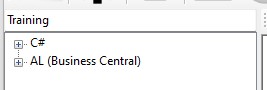
Delete
Modifying Snippets

Others
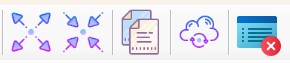
- Expand the entire tree view.
- Collapse the tree view.
- Copy a snippet to the clipboard.
- Copy data from the cloud database to the local database (requires a local MongoDB service).
- Clear the search field.
Troubleshooting
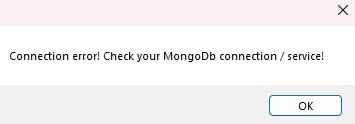
- If you are using a local database, MongoDb is not installed.
- If you are using a cloud service provider, the provider may only allow certain IP addresses to connect, in which case you will need to configure your IP address on the provider's side. An example of this is shown in the image below.
- Check your network connection and whether you have internet access.

Support me
If you enjoyed this program and would like to support my future work, you can do so here:
Patreon